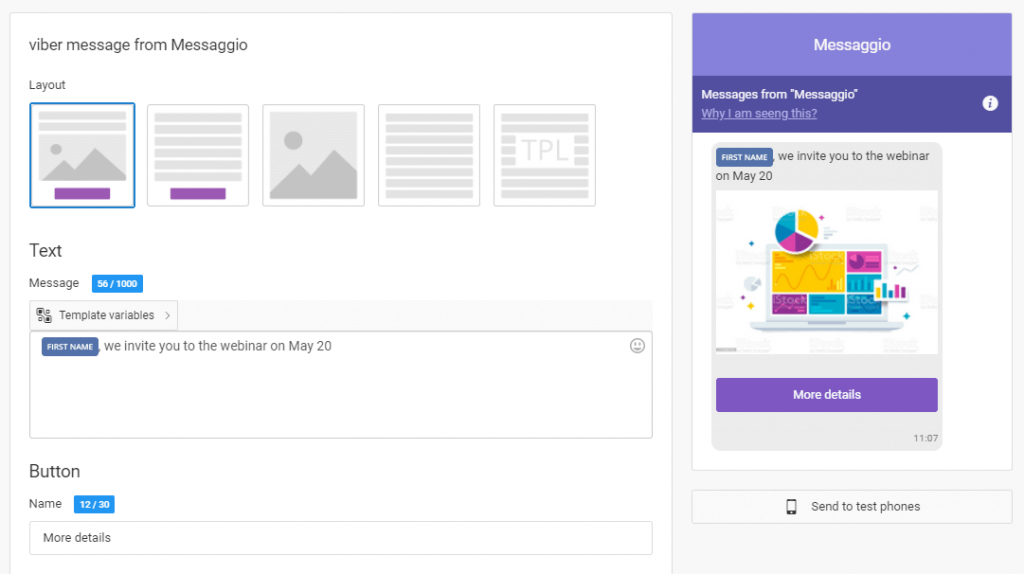
How to personalize your message

Personalized messages can help you attract users and increase the CTR of your messages. To make the message personalized, address each recipient by name, offer individual conditions for a promotion or sale.

You can use this variables to personalize messages in Messaggio:

  • First Name
  • Last Name
  • Second Name
  • Birthday
  • Email
  • Code
  • Amount
  • Date

Set data type for variables

For the variables to work correctly, you must have the appropriate values in the contact group for dispatch. So, when you import a contact database, set the data type for each variable — they will be split into columns automatically if params in the contacts file are separated by a comma or semicolon.
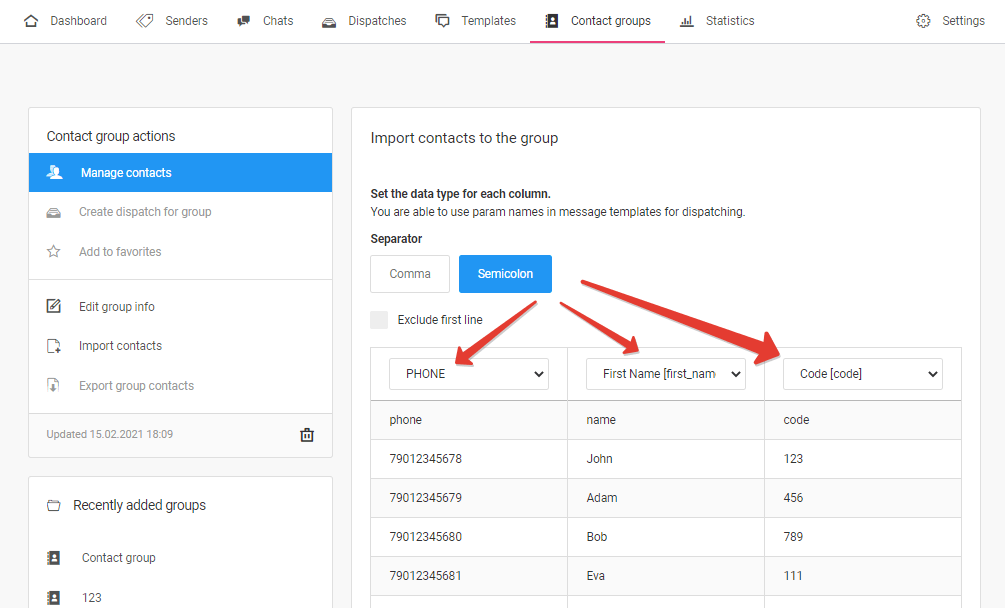
Data type for variables

You can find a sample of a contact file for uploading in the «Contact groups / Import contacts / Upload CSV file» section.
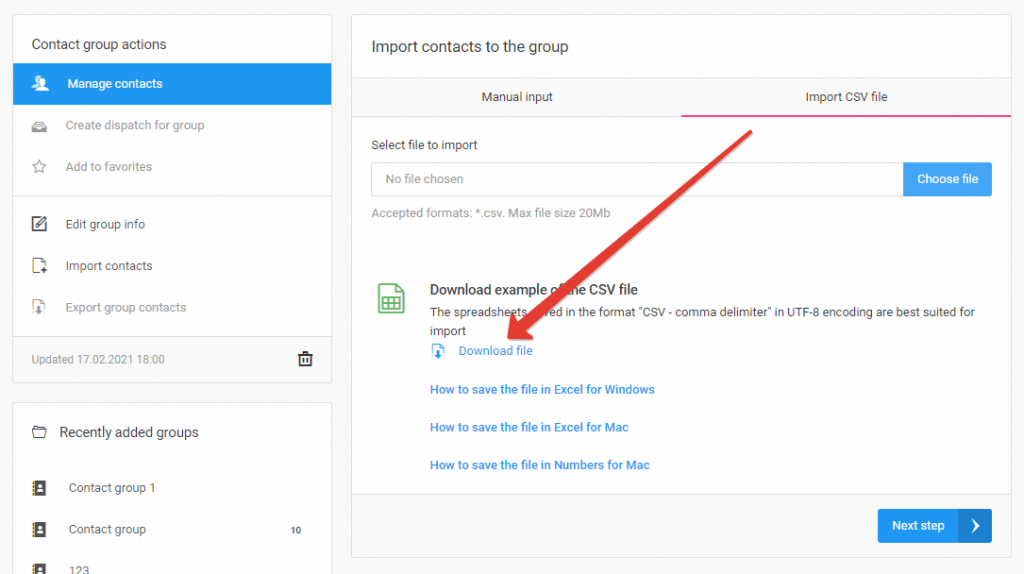
Download the CSV file

Add variables to a message template

Now you need to add variables to the text of the message template. To do this, go to the template, and in the «Text» block select variables from the «Template variables» list. 
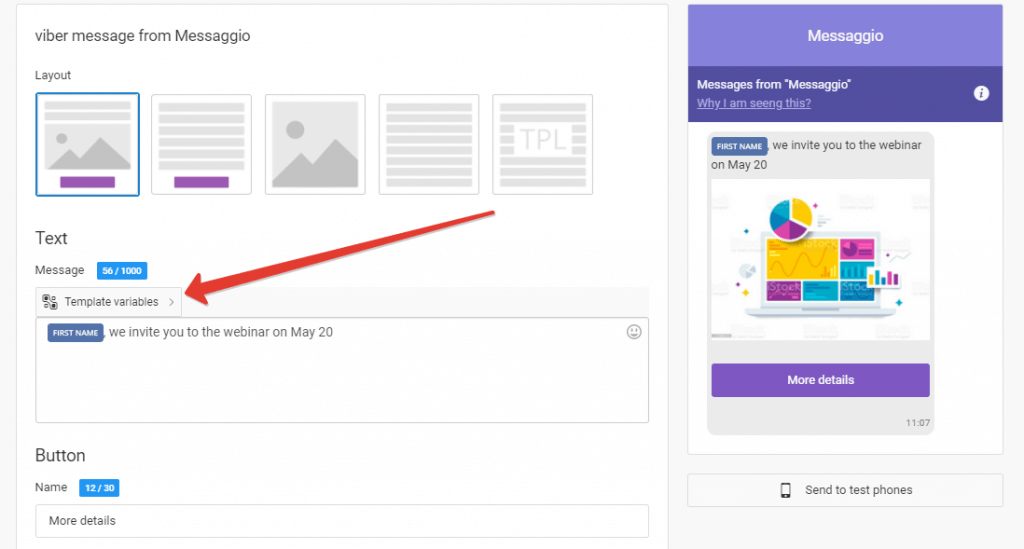
Template variables

Check the correctness of the variables — send your message to the test phone. For more information on how to test the display of a message, go to the «How to test a dispatch» section.
How to create a message template

A message template is a content you send to a customer: a combination of text, images, buttons, emojis, and links. Messaggio has template layouts for each channel.

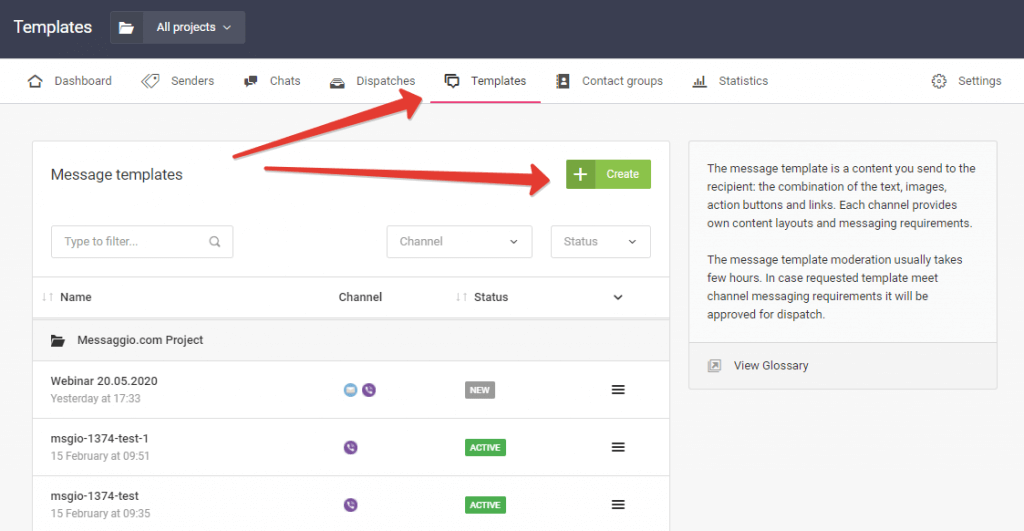
To create a template, go to the «Templates» section and click «Create».

Create-a-template

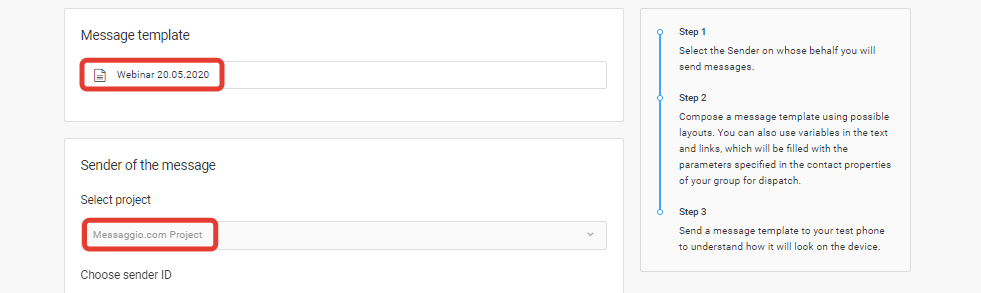
Specify the name of the template, select a project and a Sender ID, on whose messages will be sent. In the dropdown list of senders, you will find only activated Senders ID.

Set-up-a-template

Create your message using possible layouts. You can use variables in the text and links, which will be filled with the parameters specified in the data type section of the contact group for dispatch. Learn more about variables in the «How to personalize a message» section.
Viber-message-template

Click “Create”.

Activate the template to use it for messaging.

More about creating templates:

You can use a multichannel messaging template for cascading dispatch. For more information on how intelligent message routing works by channels and creating a multichannel template, go to the section «How to create a multichannel template».